
These CleanMyMac features are the modules in MacPaw’s current help: Smart Care, Cleanup, Protection, Performance, Applications, My Clutter, and, when the edition includes them, CleanMyMac Space Lens, Cloud Cleanup, Email Cleanup, and Browser Care. The CleanMyMac interface starts in the sidebar. CleanMyMac X called the combined pass Smart Scan and used a different dashboard. Do not follow a CleanMyMac X layout on the current app. If your sidebar is shorter, read Limits before you reinstall. Official descriptions live under Concepts and usage.
Smart Care
What it does. Runs Cleanup, Protection, Performance, Applications, and My Clutter in one pass and shows a tile for each.
When to use. You want a first look and you have time to read the tiles.
How to access. Sidebar, Smart Care.
- Click Scan and wait.
- Clear any tile you do not want.
- Click Review on a tile and change the selection.
- Click Run.
What to review. The size selected for cleanup, any threat names, maintenance tasks, app updates, and duplicate files.
Expected result. Only the tiles you left on are carried out. Verify in System Settings, General, Storage, and by opening a file you meant to keep.
Limits. Smart Care does not replace a module you need to inspect closely. Deselected modules can still appear as dimmed tiles. Related guide: first scan.
Cleanup
What it does. Lists system junk such as logs, caches, broken preferences, and, depending on edition, language files, system caches, and iOS device backups. It also lists Mail attachments and trash bins, including Mail trash and external-drive trash.
When to use. Storage is low and you want those groups listed instead of hunting for caches in Library.
How to access. Sidebar, Cleanup, then Scan.
- Scan and open each group.
- Leave selected only the groups whose names you understand.
- Run the cleanup.
- Check Storage again.
What to review. User caches are usually recreated. System caches and iOS backups are easier to regret. Mail attachments you have not saved elsewhere may exist only in Mail.
Expected result. The selected groups shrink or disappear from the next scan. The Mac may rebuild caches afterward.
Limits. The App Store edition cannot clean several system-junk groups. MacPaw’s comparison table is the source for which groups. This is not a way to delete System Data as a whole. Related guide: caches and System Data.
Protection
What it does. Scans for malware, lists privacy traces for browsers and recent items, and, outside the App Store edition, can review app permissions. The menu-bar Protection monitor describes real-time checking of new software and a scheduled background scan.
When to use. You downloaded installers and want a second opinion, or you want a list of camera, microphone, and disk permissions.
How to access. Sidebar, Protection, Scan. Extra locations are under Configure Scan: disk images, email attachments, archives, USB drives, and downloaded iCloud files. Background status is in the menu-bar Protection monitor.
- Run the scan.
- Open anything flagged and read the path.
- Remove a threat only if you agree it is unwanted. Quarantine or removal is the app’s action after you confirm.
- For permissions, open the permission tiles, clear the ones you still want an app to have, then revoke the rest.
What to review. A privacy cleanup can sign you out of websites or clear recent items. That is not a malware result. Do not turn off the Mac’s own Gatekeeper because a third-party scanner is installed.
Expected result. The threat list is empty after you remove what you confirmed, or it still shows an item you refused to delete.
Limits. This site does not publish detection rates. Safari privacy items and Wi-Fi network cleanup are among the pieces MacPaw says are absent from the App Store edition. Related guide: permission problems.
Performance
What it does. Offers maintenance tasks. MacPaw’s Smart Care description includes periodic scripts and Flush DNS Cache. The edition table also lists Free Up Purgeable Space on the MacPaw Store and Setapp editions, and login items plus background items on the App Store edition.
When to use. You want those maintenance actions in one place. For a slow Mac, read Activity Monitor first. Flushing DNS does not free disk space. It refreshes cached website names.
How to access. Sidebar, Performance. Login items in macOS itself are under System Settings, General, Login Items and Extensions.
- Scan.
- Open the maintenance list and skip tasks you do not want.
- Run the ones you kept.
- If you came here because the Mac is slow, compare CPU and Memory in Activity Monitor before and after. The optimization guide shows that check.
What to review. Login items you do not recognize should stay until you know which app added them.
Expected result. The task list shows the items you ran as done. The Mac does not gain a fixed speed increase you can quote.
Limits. Maintenance scripts are not a repair for a failing disk or a full startup volume. Related guide: memory pressure.
Applications, Uninstaller, and Updater
What it does. Lists installed apps so you can uninstall one with more of its support files, or install updates for third-party apps. MacPaw says Smart Care’s update suggestions skip system apps and macOS updates.
When to use. An app you removed by dragging it to the Trash left a launcher behind, or you want to see app updates without opening each app.
How to access. Sidebar, Applications, Scan, then Manage My Applications. Uninstaller and updater are categories there.
- Scan.
- Open Uninstaller and select one app.
- Read the related files. Deselect anything that belongs to a different app.
- Uninstall, then check Applications and try to launch the app you removed. It should not open.
What to review. Shared components. If two apps from the same vendor are listed, uninstall only the one you named.
Expected result. The selected app is gone from Applications. macOS itself is unchanged.
Limits. The updater does not replace System Settings, General, Software Update. Related guide: uninstall apps on a Mac.
My Clutter
What it does. Finds large and old files, duplicates, similar images, and downloads. Smart Care’s clutter pass, as MacPaw describes it, looks for duplicates in Downloads. The full module covers more locations.
When to use. Downloads or your home folder has installers, copies, and old exports you can identify by eye.
How to access. Sidebar, My Clutter, then the category you want, then Scan.
- Scan the category.
- Sort or open the largest items.
- Keep one copy of anything you still need. Deselect it.
- Remove the rest and open the surviving copy to prove it opens.
What to review. Photos that look similar may not be duplicates. Disk images can be the only installer you have.
Expected result. The files you selected are in the Trash or deleted, depending on the action you confirmed. The copy you kept still opens.
Limits. macOS does not include a general duplicate finder. The built-in alternative is to sort Downloads by size and compare names yourself, and to use the Duplicates album in Photos if that album is present. Related guide: large and duplicate files.
CleanMyMac Space Lens
What it does. Maps a drive so you can see which folders are large, then builds a removal list.
When to use. Storage categories are not specific enough and you want folder sizes.
How to access. Sidebar, Space Lens, if your edition includes it. MacPaw’s upgrade notes name Space Lens among modules that can be locked on an App Store one-time purchase.
- Start the scan of the disk you choose.
- Open the largest folders.
- Select files you recognize.
- Review the removal list and only then confirm.
What to review. System folders and other users’ folders. Leave them.
Expected result. A folder you emptied is smaller on the next scan. Verify in Finder, File, Get Info, on that folder.
Limits. If Space Lens is missing, use System Settings, General, Storage, Documents, File Browser. Related guide: check storage.
Cloud Cleanup
What it does. Connects a cloud drive so you can review files stored in iCloud Drive, Google Drive, OneDrive, or Dropbox.
When to use. The Mac is storing cloud copies you also have online, and you understand that deleting a synced file can delete it from the cloud account.
How to access. Sidebar, Cloud Cleanup, then connect the service. Disconnect is a separate command when you want the app to stop reading that drive.
- Connect one account.
- Scan and open large files.
- Remove a file only if you know the cloud copy is the one you mean to delete.
- Sign in to the cloud service in a browser and confirm the file is gone or still there, matching what you intended.
Limits. A cloud delete is not the same as removing a local cache. This module can be unavailable on some App Store purchases. Related guide: backups and copies.
Email Cleanup
What it does. Connects a mailbox and lists bulky mail, newsletters, spam, and drafts. It can unsubscribe from a sender.
When to use. Mail’s own mailbox is large and you want senders grouped.
How to access. Email Cleanup in the sidebar, after you connect the account. MacPaw documents Smart Cleanup, newsletters, subscriptions, spam, drafts, and cleanup by sender as separate views.
- Connect the mailbox.
- Open one suggestion and read the subjects.
- Delete or unsubscribe only for that sender.
- In the mail service on the web, confirm the messages are in Trash or still in the inbox.
Limits. Unsubscribing contacts the mailing list. Do not connect a mailbox to a copy of the app you did not install from an official source. Cleanup of Mail attachments inside the Cleanup module is a different tool and does not require Email Cleanup. Related guide: Mail attachments and Trash.
Browser Care
What it does. A Chrome extension, installed from CleanMyMac or the Chrome Web Store, that lists Chrome tabs by memory and processor use and can pause, close, or drop duplicate tabs.
When to use. Chrome is the process at the top of Activity Monitor and you have more tabs open than you need.
How to access. Install and pin the extension, then connect it as MacPaw’s setup article describes. The built-in alternative is Chrome’s own tab list and Activity Monitor.
- In Activity Monitor, confirm Google Chrome is the heavy process.
- Close tabs you do not need, from Chrome itself, or pause them in Browser Care if you installed it.
- Look at Memory again.
Limits. It does not manage Safari. Closing a tab can lose an unsaved form. Related guide: browsers.
Feature comparison
| Feature | Purpose | When to use | What to review | Related guide |
|---|---|---|---|---|
| Smart Care | One pass across the main modules | First session | Every selected tile | First scan |
| Cleanup | Junk, mail attachments, trash | Low disk space | Group names and sizes | Mac cleanup |
| Protection | Malware scan and privacy lists | After installing unknown software | Flagged paths and permissions | Permissions |
| Performance | Maintenance tasks | You want DNS flush or login-item review | Tasks you do not recognize | Optimization |
| Applications | Uninstall and app updates | Leftover app files | Related files for one app | Uninstall apps |
| My Clutter and Space Lens | Large, duplicate, and folder-level files | Downloads and home-folder clutter | Keep one copy | Large files |
| Cloud and Email Cleanup | Remote files and mailbox bulk | Synced copies and newsletters | Deletes that also change the online account | Mail and Trash |
Limits
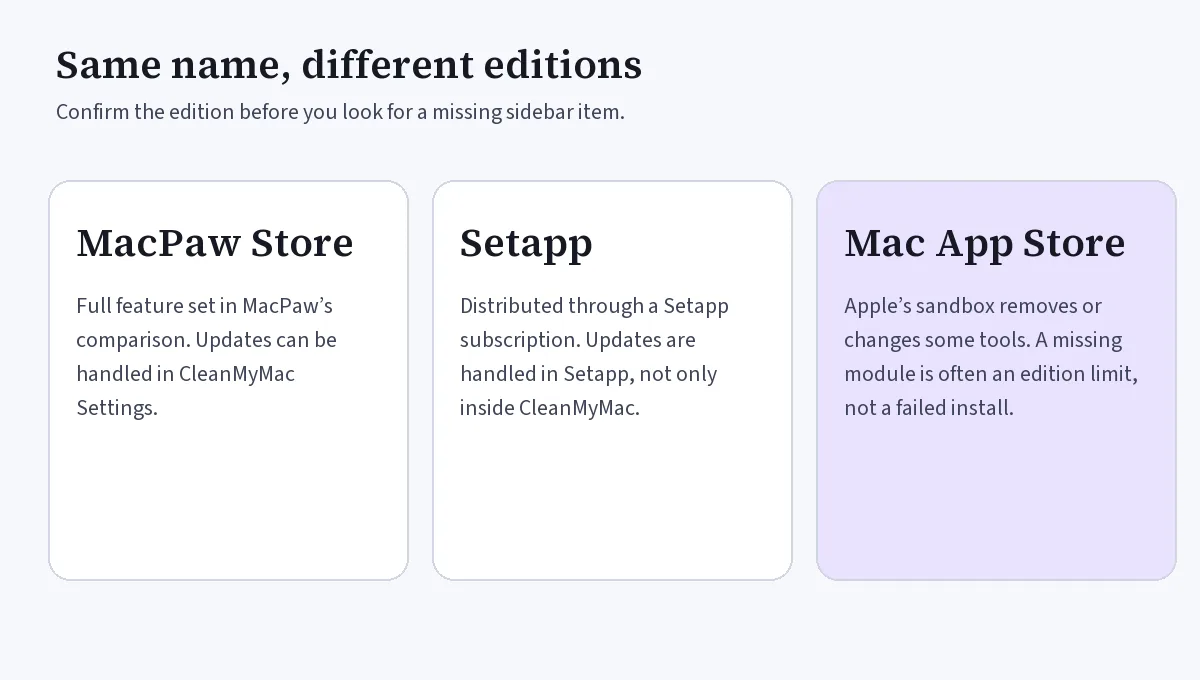
- The Mac App Store edition drops or relocates tools because of Apple’s sandbox. That includes parts of system-junk cleanup, some privacy items, and some maintenance tasks.
- CleanMyMac does not replace a backup. Time Machine and your own copies are the way back if a file was removed.
- It does not show a guaranteed amount of freed space or a guaranteed speed change. Those numbers would be a guess about your Mac.
- License, renewal, and refund questions belong to the store that charged you.