
Use this page when a Mac feels slow: how to check memory pressure, what a memory cleaner on a Mac can and cannot do, and how to clean up a Mac to make it run faster without wiping caches you have not measured. CleanMyMac’s Performance module is one optional list. Activity Monitor is the check that comes first.
Open Activity Monitor
The problem is a slow interface, a hot Mac, or a fan that does not settle. The cause might be one app, too little free RAM for the work you are doing, or items that launch at login. Guessing and then deleting caches skips the measurement.
- Open Finder, Applications, Utilities, Activity Monitor. Or press Command-Space, type Activity Monitor, and press Return.
- Click CPU. Click the % CPU column until the busiest processes are at the top.
- Watch for a minute while you are not actively working. A short spike when a window opens is normal. A process that stays at the top while the Mac is idle is the one to identify.
- Click Memory and read Memory Pressure, Swap Used, and Cached Files at the bottom.
Expected result: you can name the busiest process, or you can see that no single app is stuck. Verify by selecting that process and reading its name under the toolbar. Alternative: Apple’s note on a slow Mac is If your Mac runs slowly. Stop if the busiest names are kernel_task or WindowServer and you were about to force-quit them. kernel_task often rises while the Mac manages temperature. Look up a process before you kill it.
CPU
- Sort by % CPU.
- If the name is an app you opened, quit it with its own Quit command. Use Force Quit from the Apple menu only if Quit does nothing.
- If the name is a helper, check Login Items and Extensions for the same vendor.
- After quitting, watch the CPU column fall. If it does not, restart the Mac and look again before the same apps reopen.
Expected result: idle CPU is no longer dominated by the app you quit. Verify by leaving the Mac still for a minute. Alternative: update that one app from the App Store or the developer, then recheck. A cleanup scan is not the first step for a CPU spike. Stop before disabling Gatekeeper, firewall, or FileVault to reduce CPU.
Memory pressure, swap, and cache
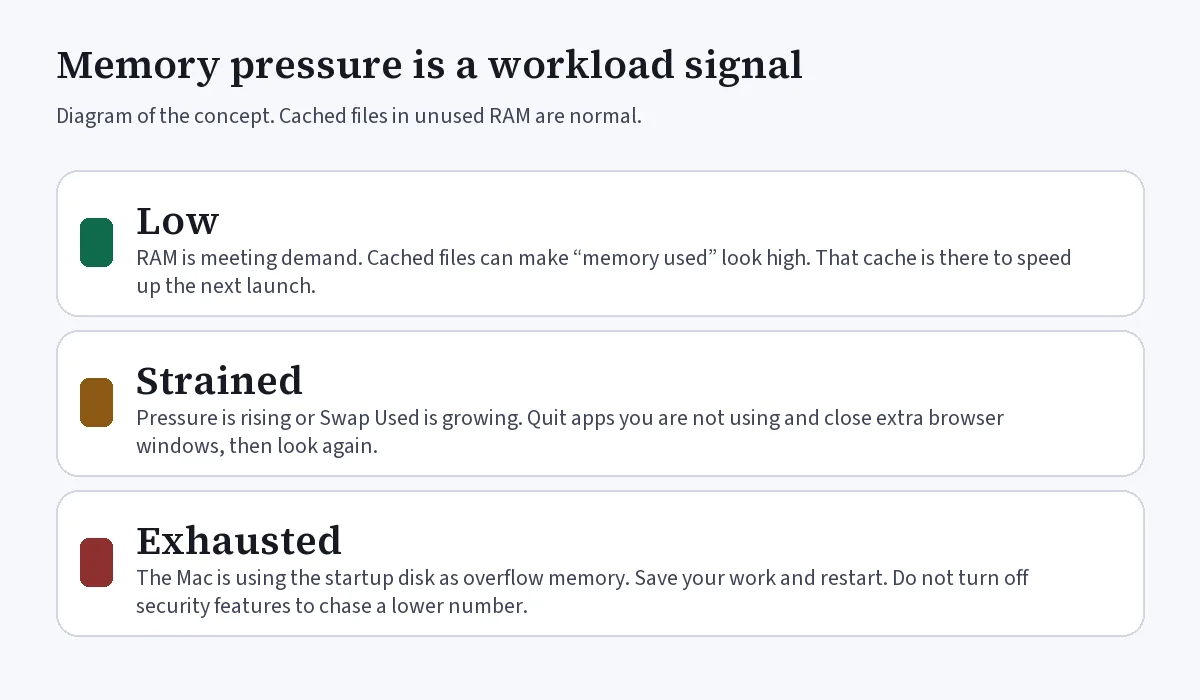
Memory Used includes App Memory, Wired Memory, Compressed memory, and Cached Files. Apple describes cached files as data kept in unused RAM so the next launch is faster. Until something else needs that RAM, the cache stays. A high Memory Used figure with low memory pressure and a small Swap Used value is not a fault.
Memory pressure is Apple’s graph of how well RAM is meeting demand, based on free memory, swap rate, wired memory, and cached files. Swap Used is startup-disk space holding memory that did not fit in RAM. Growing swap plus rising pressure means the Mac is using the disk as overflow.
- Quit apps you are not using. Close browser windows you do not need.
- Look at Memory Pressure and Swap Used again.
- If pressure stays high and swap keeps growing, save your work and restart.
- After restart, open only the apps you need and read the Memory pane again.
Expected result: pressure drops after you quit the heavy app, or it returns as soon as you reopen the same workload. The second outcome means that workload needs more RAM than this Mac has easily available. That is a hardware limit, not a junk-file problem. Verify by repeating the same task once. Alternative: move the heavy work to fewer files or a smaller browser session. Stop if someone tells you to turn off memory compression or system integrity protection. Do not do that for speed.
Login items and background items
Login items open when you sign in. Background items are allowed to run even when you are not looking at them. Both are visible in System Settings on current macOS.
- Choose Apple menu, System Settings, General, Login Items and Extensions.
- Under Open at Login, select an item you recognize and do not need at startup. Remove it with the minus button.
- Under Allow in the Background, turn off items you recognize and do not want running. Leave entries you cannot identify until you know the app.
- Restart and time the period before the Mac is usable. Then open Activity Monitor and see whether that item is gone.
Method B: CleanMyMac’s Performance tools can list login items and background items. Which of those lists exist depends on the edition. Review there, then confirm the same item changed in System Settings. Expected result: the item no longer launches, and the app still opens when you choose it yourself. Verify both. Alternative: leave the list alone and quit the heavy app by hand each day. Stop if removing an item disables a backup agent or a company security tool you are required to run.
Slow startup
- Restart and count how many apps reopen. Those are login items or windows from Resume.
- When you shut down, deselect reopening windows if macOS offers that checkbox.
- Remove the login items you identified above and restart a second time.
- If startup is still stuck on a bar, note how far it gets and use Apple’s startup help for that Mac. Do not hold keys you found on a forum.
Expected result: the desktop appears without a crowd of apps. Verify with one more restart. Alternative: create a new user in System Settings, Users and Groups, and sign in once. If that user is fast, the cause is in your user account’s login items or files, not the whole Mac. Stop if the Mac cannot reach the login window. That is outside a cleanup guide.
Browsers and busy apps
- In Activity Monitor’s Memory or CPU tab, see whether the browser is the top process.
- Close tabs you can reopen. Remove extensions you do not use, from the browser’s extension settings.
- Read the Memory pane again.
- If you use Chrome and want a tab list sorted by resource use, Browser Care is CleanMyMac’s Chrome extension. It is optional. Chrome’s task manager, under the Window menu, is the built-in list.
Expected result: browser memory drops after you close the extra windows. Verify in Activity Monitor, not by how the fan feels for ten seconds. Alternative: use one browser for the heavy site and quit the other. Stop before installing a second “optimizer” to manage the first one.
Updates
- Choose Apple menu, System Settings, General, Software Update. Install updates you are ready to apply, after you have a backup.
- Open the App Store, then Updates, for App Store apps.
- Update other apps from their own menu, or from CleanMyMac’s updater if you already use it and you have read the update list.
- Do not install a macOS beta to fix slowness on a Mac you rely on.
Expected result: Software Update says the Mac is up to date, or it shows a specific update you chose to postpone. Verify by opening Software Update again. Alternative: update the one slow app and leave macOS where it is if an upgrade is a bigger project. Stop if the update needs more free space than you have. Free space with the cleanup guide, then return.
Intel and Apple silicon
- In About This Mac, read the chip.
- In Activity Monitor, choose View, Columns, and enable Kind if you do not see it.
- Intel apps on an Apple silicon Mac run with Rosetta. They can use more energy. That label explains the kind of app. It is not a reason to delete Rosetta if your apps need it.
- Prefer a current build of that app from the developer when one exists, then recheck Kind and CPU.
Expected result: you know whether the heavy app is Apple or Intel. Verify in the Kind column. Alternative: leave Rosetta installed and close the Intel app when you are done. Stop if a guide tells you to remove Rosetta with Terminal to “speed up” the Mac.
Maintenance checklist
Saved only in this browser. Clear the site’s data and the checks reset.
If the disk is the thing that is full, switch to Mac cleanup. Performance steps will not create a large amount of free space.
Symptom and check
| Symptom | Possible cause | How to check | Recommended action |
|---|---|---|---|
| Fan loud, one app on screen | That app is busy | Activity Monitor, CPU | Quit it, then recheck |
| Memory Used looks high, Mac feels fine | Cached files in free RAM | Memory pane, Cached Files and Memory Pressure | Leave the cache |
| Beachballs and Swap Used climbing | Workload exceeds RAM | Memory Pressure and Swap Used | Quit apps, restart, reduce the workload |
| Slow every time you sign in | Login items | Login Items and Extensions | Remove items you recognize |
| Chrome at the top of Memory | Tabs and extensions | Activity Monitor and the browser’s tab list | Close tabs, then recheck |
| Hot Mac, little CPU, little swap | Temperature management, or a process you have not sorted correctly | CPU sort, including kernel_task | Stop forcing processes to quit and check ventilation and updates |